Core Concepts · Screen Tour
Core Concepts in 3 Minutes
| Concept | Description |
|---|---|
| Master (You) | The user. Owner of the office, shown with 👑. Instructions given directly to the Master are handled by the Master persona. |
| Employee | An AI with a role (e.g., Marketer, Researcher, Designer). Hired through an interview; each has their own pixel character and desk. |
| Project | A workspace grouping multiple employees. They share project memory (context) and work together. |
| Team | A group of employees. You can open all-hands meetings in a team channel. |
| Mission (task) | One instruction = one mission. Runs as direct, meeting, or pipeline (orchestrated). |
| Deliverable (Artifact) | A file produced as a mission result (docx, xlsx, pdf, image, video, audio, HTML). Local storage is first-class; Supabase Storage upload is secondary. |
| Skill | A methodology (prompt bundle) for a specific task. 100+ built-ins plus the ability to create your own. |
| Plugin | Tools for file generation (Word/Excel/PPT/video, etc.) and external integrations. Managed with on/off toggles. |
| Connector (MCP) | Connects external services (e.g., Zapier, Higgsfield) via a standard protocol. |
| Work (recurring task) | Save frequently used instructions and run them with a single click. Link to a schedule for automatic repetition. |
Two ways in
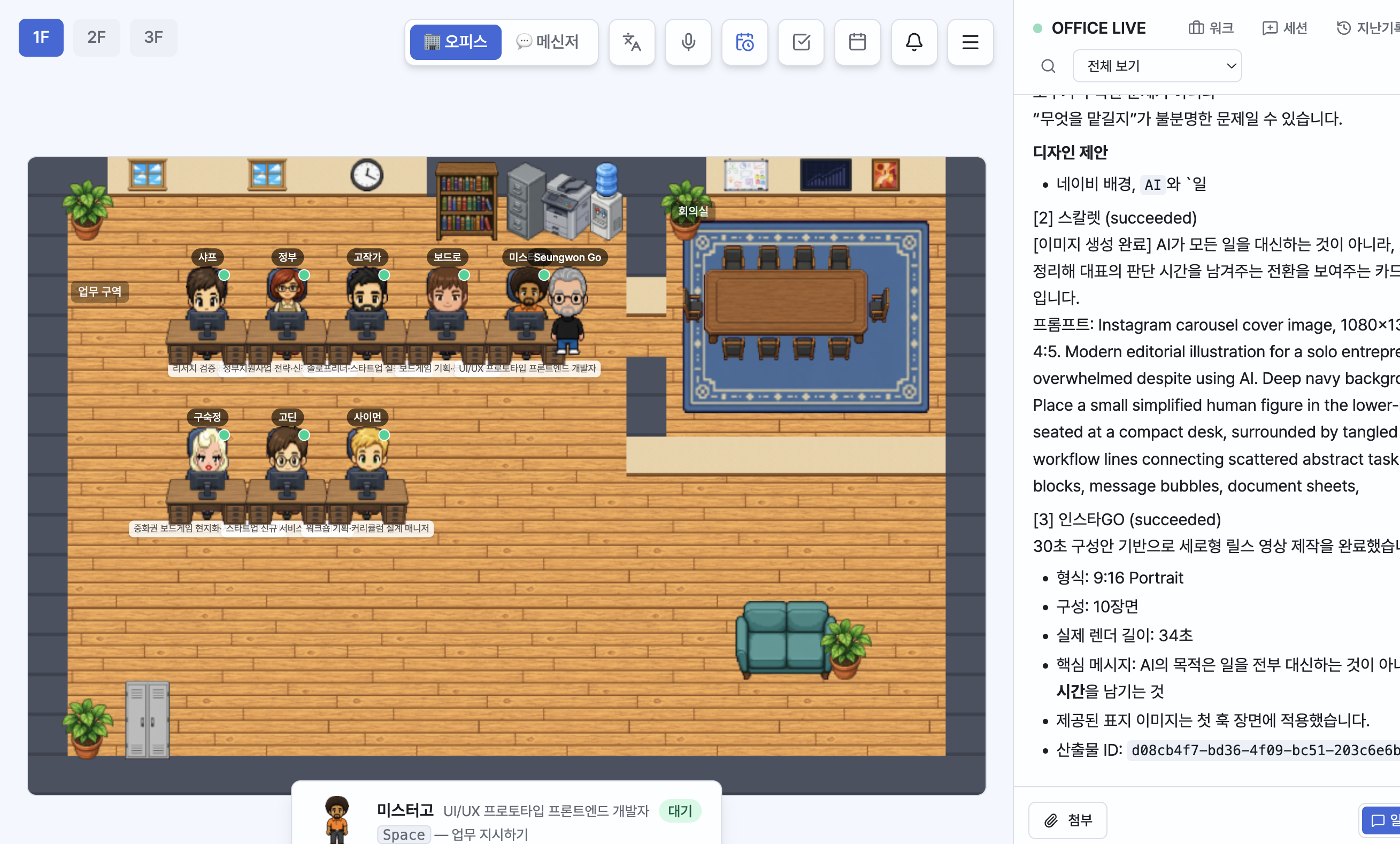
- Office Map (Gather-style): walk your character up to an employee and give instructions.
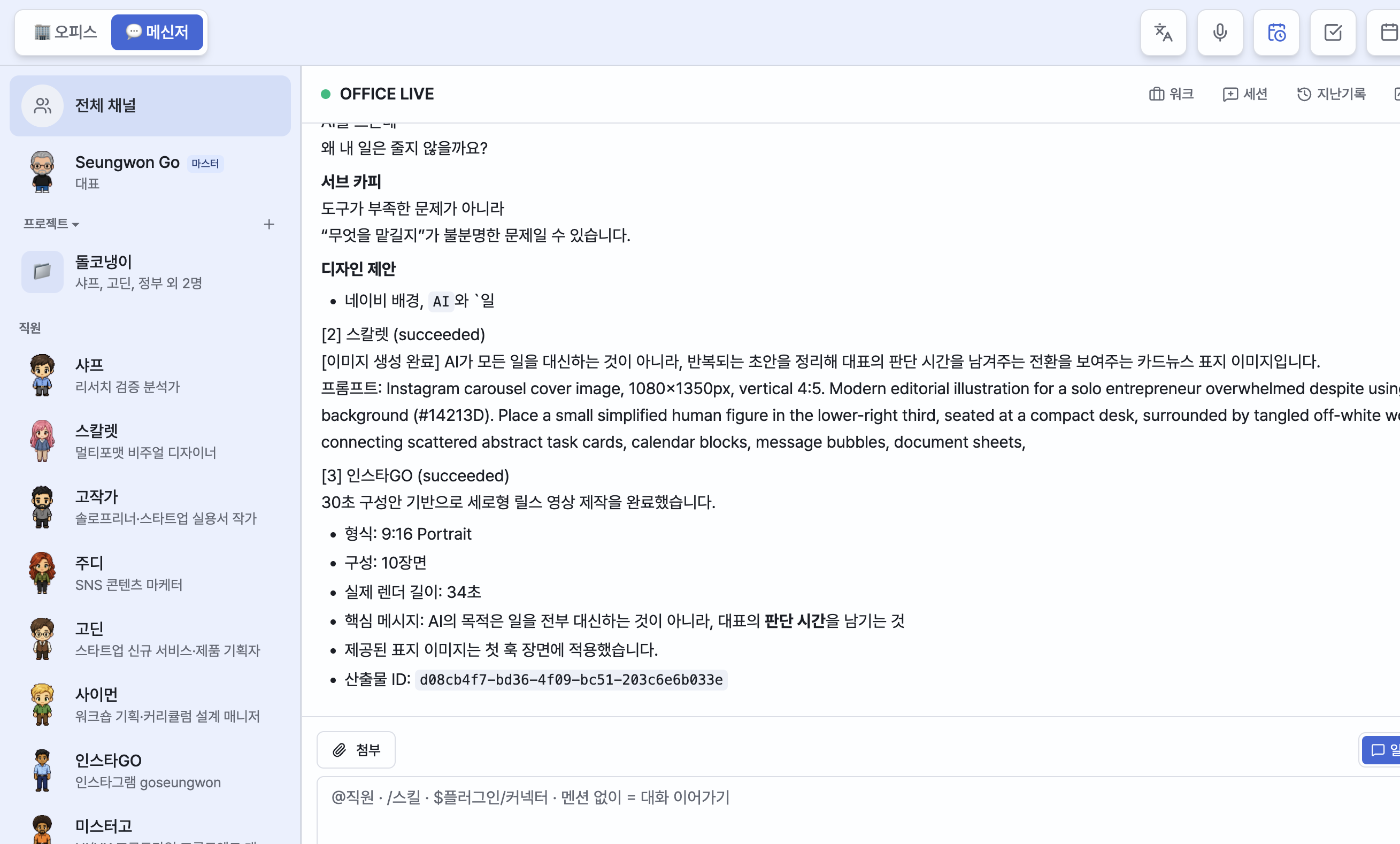
- Messenger view: like a chat app — pick from the channel list on the left (All, Master, projects, employees) and give instructions.
Both provide exactly the same chat features, so switch between them as the situation calls for.
Screen Tour
Office Map (default screen)
- A pixel-art office. Move the Master character with the arrow keys.
- Walk up close to an employee's desk and an interaction prompt appears, letting you give instructions right there.
- Sleep capsule: put an employee in a capsule to reorganize (optimize) their skills and memory based on their work history.
- Fatigue: characters look tired based on workload without rest (30+ tasks: tired 😮💨 / 60+ tasks: overworked 💤) or memory buildup. Approach an overworked employee and a [Send to sleep capsule] button appears; in the Messenger you can send them with [💤 Put to sleep] — the screen switches to the 3rd floor where you can see them recovering in the capsule, and fatigue resets when it's done. When they level up, a one-time notification appears at the top right.
- The menu button at the top right takes you to every sub-screen (Employees, Meetings, Meeting Notes, Work Results, Deliverables, Skills, Plugins, Connectors, Token Usage, Settings).
- Top right clock icon: Scheduler. Bell icon: notifications for unviewed results.
Messenger view
- A messenger-style screen made up of a top header and a channel sidebar on the left.
- Left channels: All channel, Me (Master, 👑), Projects (up to 5 + show more/collapse), employee list.
- When an employee or project is working on something, a working animation and dot indicator appear on their avatar in the sidebar.
- The sidebar scrolls only within the sidebar itself.
Top navigation buttons
At the top left of the Office Map, Messenger, and every sub-screen, the 🏢 Office and 💬 Messenger buttons sit side by side so you can switch between the two views.
Sub-screens
| Screen | Description |
|---|---|
| Employees | Hire, list, details, edit, dismiss |
| Meetings | Set attendees, topic, and rounds for an AI-to-AI discussion |
| Meeting Notes | Record/upload/paste → transcribe → summarize and organize action items |
| Work Results | List and details of completed missions |
| Deliverables | Browse, preview, and delete generated files |
| Skills | Toggle built-in skills on/off, trigger modes, create your own |
| Plugins | Toggle file-generation and external-integration tools on/off |
| Connectors | Register MCP connectors |
| Token Usage | Usage and cost by model, employee, and period |
| Settings | Connections, models, preferences, execution, Instagram, Telegram, office layout, license |