Setting Up AI Models
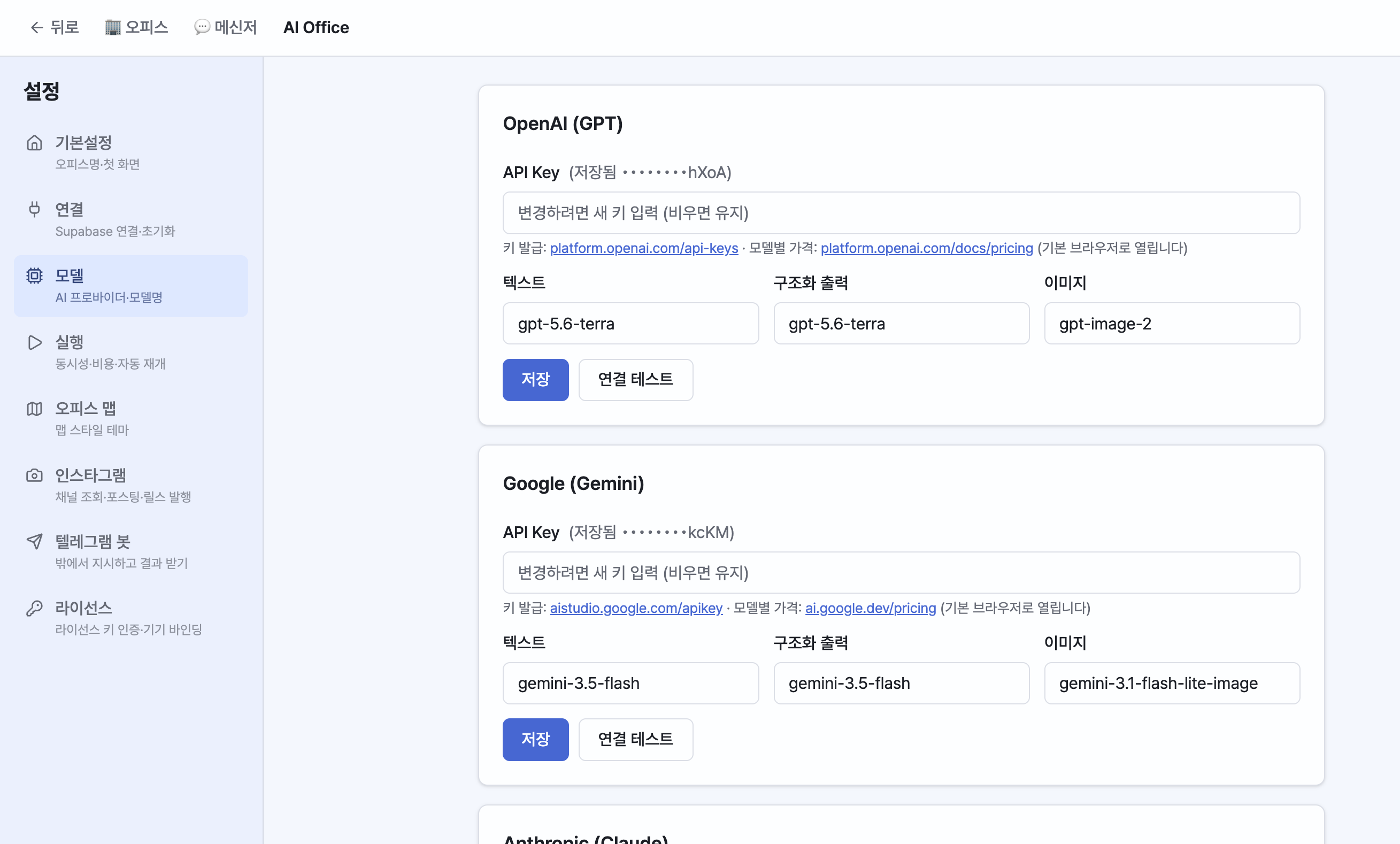
Register the API keys for the AI providers you want to use in Settings > Models. One provider is enough to get started, but registering multiple providers enables fallback (alternate execution).
Supported Providers
| Provider | Representative Models (examples) | Image Generation |
|---|---|---|
| OpenAI | gpt-5, gpt-5-mini, gpt-4.1, gpt-4o / Images: gpt-image-2, gpt-image-1 | Supported |
| Google (Gemini) | gemini-2.5-pro, gemini-2.5-flash / Images: imagen-3.0 | Supported |
| Anthropic (Claude) | Claude family | Not supported (image requests are routed via fallback) |
Enter your API Key on each card, and use the links below it to go to the key issuance and pricing pages. Keys are stored encrypted in the OS keychain and appear masked on screen.
Assigning Models by Purpose
For each provider, you can choose a model per purpose.
- Text: General answers, research, and writing
- Structured output: Generating JSON structures such as documents, tables, and image briefs (quality and accuracy matter)
- Images: Generating illustrations, photos, and logos (disabled for Anthropic)
Tip: Web search uses each provider's built-in search (OpenAI/Anthropic/Gemini), so no separate search key is needed. If you leave the OpenAI image model empty, it falls back to the Gemini image model; if neither is set, a notice is shown.
Key Verification
Use the [Verify] button on each card to instantly check whether a key is valid.