Hiring Employees · Teams & Projects
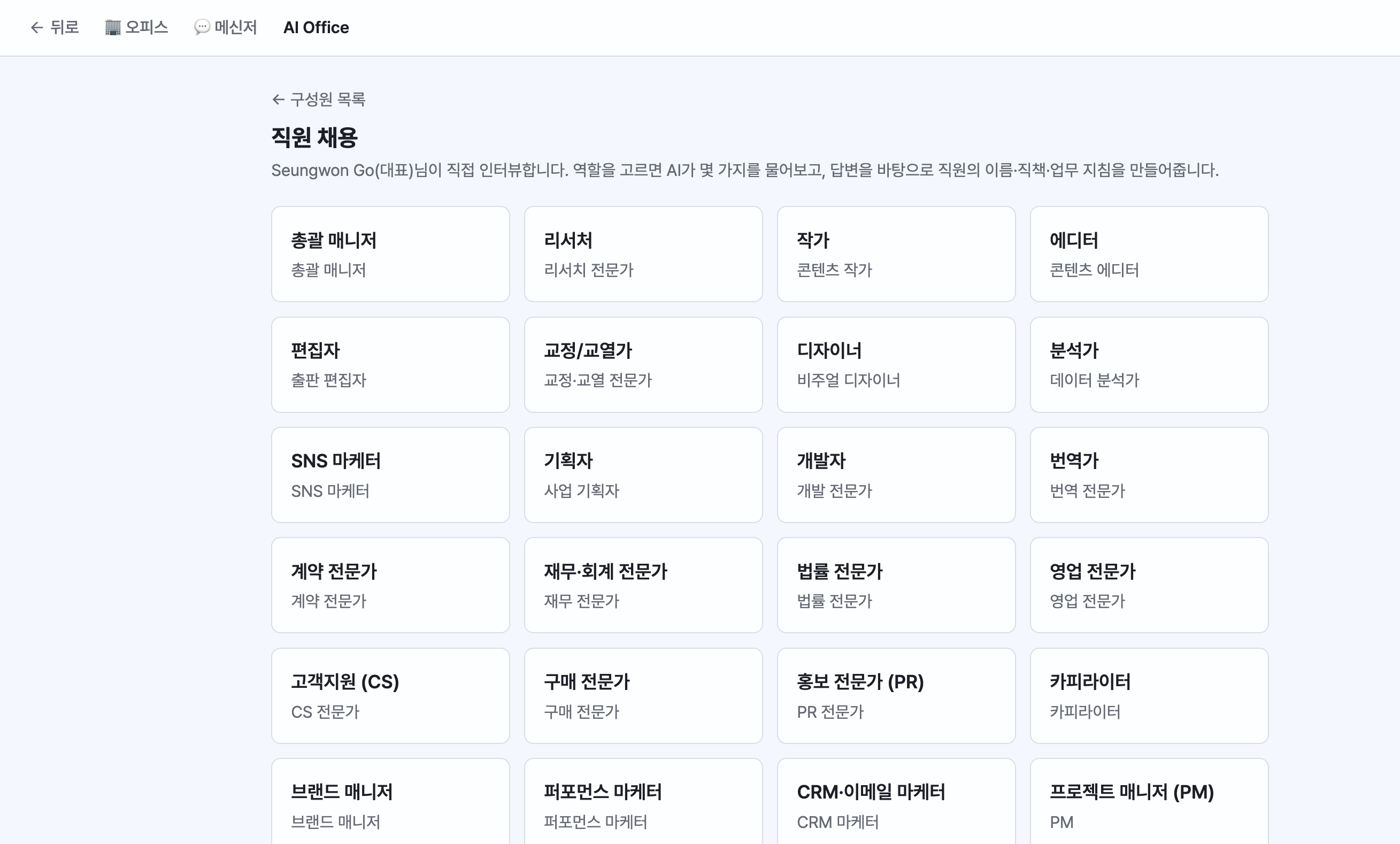
Hiring an Employee
Go to Menu > Employees > Hire (or the [Hire] button on the Employees screen).
Choosing a Role
Around 40 role presets are shown four per row. Examples:
- General: Marketer, Researcher, Copywriter, Designer, Developer, Planner, Data Analyst, Translator, and more
- Music: Lyricist, Composer, Music Producer
- Experts: Advertising Expert, Reviewer, Webtoon Artist, GEO Expert, Community Expert, Patent Expert, Overseas Market Expert, Language Expert, Education Expert, Investment Expert, Legal Expert, and more
Each role comes with default instructions that begin in the form "You are an expert in ~."
Interview (Multiple Choice + Free Input)
The hiring interview asks a few questions with multiple-choice options plus free input. If you're not sure, you can simply pick "Not sure." Based on your answers, the employee's personality and expertise take shape.
Choosing an Avatar
Choose from 56 pixel characters. Historical-figure-style characters (Jobs, Einstein, Sejong, and more) are also included.
Deliverable Types
You can specify the types of output this employee will primarily produce: text, documents, Excel, PDF, images, video and audio, and more. (A per-employee model override can also be set on the detail screen.)
Details · Edit · Dismiss
- Employee details: View the profile, instructions, model override, and learned skills/memory.
- Edit: Change the name, role instructions, avatar, and deliverable types.
- Dismiss: Click the [Dismiss] button → in the confirmation dialog you can choose a handover recipient. With a handover, the dismissed employee's memory, skills, and recent work history are transferred to the designated employee, and their assigned schedules and project seats are replaced by that employee as well. (Dismissal without a handover is also possible.)
Creating Teams & Projects
Teams
A group that brings multiple employees together. Set the name and members in the Team Builder. You can hold all-hands meetings in the team channel.
Projects
A workspace for a specific goal. Assign members (employees) so they work together in the project chat, and project memory carries the context (progress and decisions) forward.
- Instructions given in the project chat stay within the project only (they don't leak into employees' personal chats).
- Open a project from the left side of the Messenger, and manage it with collapse/expand and the more menu.
- Manage a project with the ⋮ (More) button that appears when you hover over it:
- Settings: The right pane switches to the settings screen — project name, Instructions (rules, tone, and constraints always applied to every task), Memory (entries automatically added one at a time whenever a task is completed — delete incorrect memories individually), Context (files with text extraction for docx, pptx, xlsx, txt, md, csv / text / URLs — injected as reference material across tasks)
- Members: Add or remove employees assigned to the project
- Meeting notes: A list of meeting notes moved into this project (moved from all meeting notes via the 📂 button)
- Delete: To prevent mistakes, you must type the project name exactly to delete it